.png?width=100&height=75&name=Logo%20wit%20(1).png)
🔑 Overview
The Altura–SharePoint integration enables bid teams to search internal company knowledge (vision documents, product information, strategy decks) directly from the Altura Bid Companion.
Instead of manually uploading files, authorized users can link SharePoint folders to Altura. Documents inside these folders are indexed and become searchable through Altura’s Knowledge Base Search.
⚙️ Technical Architecture
- Authentication
- Users authenticate via Microsoft Entra ID (formerly Azure AD).
- Required role for setup: EntraID Application Administrator.
- Only Altura Admin users can configure the connection and manage folders.
- Connection
- Altura connects to SharePoint using Microsoft Graph API.
- Once authenticated, Altura retrieves a list of available SharePoint sites and folders.
- Folder Sync
- Admins can select one or more folders to sync.
- A background sync process runs every 5 minutes, detecting new, updated, or deleted documents.
- All file types in the selected folders are synchronized with Altura to maintain an up-to-date structure.
- However, only specific file types (Word, PDF, Excel, PowerPoint) are currently processed and indexed for AI search within Altura.
- Other file types (e.g., OneNote, email, custom formats) are synced in the folder structure but not yet searchable or analyzed.
- Data Flow
- Document is added/updated in SharePoint.
- Altura background job indexes metadata + text content.
- Content becomes available in Altura Knowledge Base Search.
- When a user clicks a search result, the file opens directly in SharePoint (external link).
- Document Access
- When folders are synced, all documents within those folders can appear in Altura Search results, regardless of individual user permissions in SharePoint.
- Search results in Altura display the document title and a snippet of its content. This means that limited information from a document may be visible to users, even if they don’t have permission to open the file in SharePoint.
- When a user clicks a search result, the document opens directly in SharePoint. At that point, SharePoint’s own permissions determine whether the user can view the full document.
- Altura itself does not enforce or replicate SharePoint permissions. Files are indexed and searchable based on the permissions configured for the connection, not per individual user.
- For this reason, we strongly recommend that administrators do not sync folders containing sensitive or restricted information that should not be visible to all Altura users.
🔐 Security & Permissions
- Altura does not replicate or host full SharePoint folders. Only indexed text and metadata are used for search.
- Altura adheres to Microsoft Graph API permission scopes
- Authentication tokens are securely stored and refreshed automatically.
- Access control is two-layered:
- Altura roles: Admins can manage integration; users can only search.
- SharePoint permissions: Enforced natively when a document is opened.
🛂 Entra ID Admin Consent
The Altura–SharePoint integration requires tenant-wide Microsoft Graph permissions that cannot be granted by standard users.
As a result, admin consent must be granted in Microsoft Entra ID before the integration can be completed.
-
Admin consent options
- Direct admin consent: An Entra ID Global Administrator or Application Administrator grants consent during setup.
- Admin consent request workflow (recommended): Non-admin users can request approval, which is reviewed by administrators.
-
- Log in to the Microsoft Entra admin center.
- Go to Entra ID → Enterprise applications → Consent and permissions → Admin consent settings.
- Set “Users can request admin consent to apps they are unable to consent to” to Yes.
- Add one or more reviewers (users, groups, or roles).
- Optional: enable email notifications and reminders.
How to enable the admin consent request workflow (as Global Administrator)
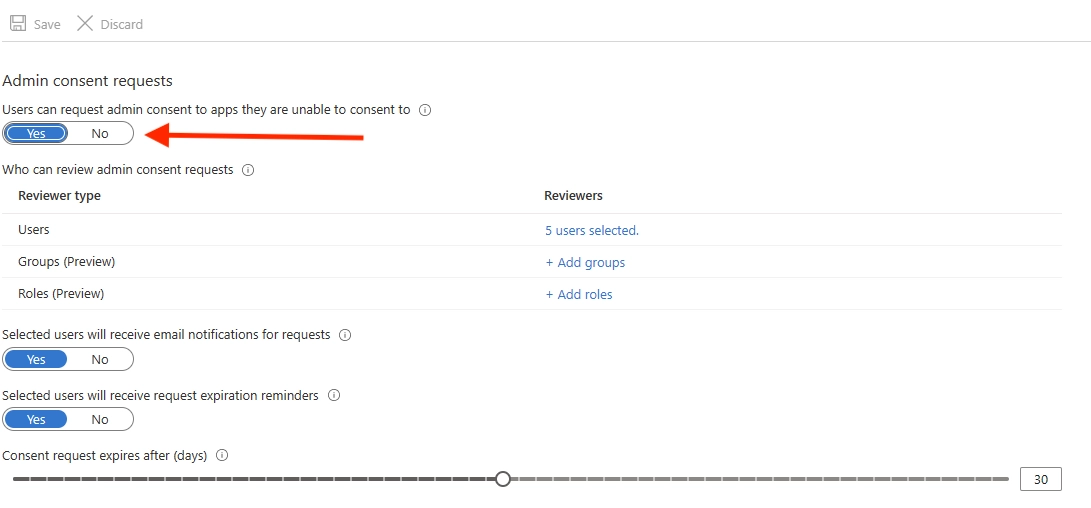
Once enabled:
- Users attempting to connect Altura will see a “Request approval” option.
- Reviewers can approve or deny the request.
- After approval, Altura receives the required permissions and the integration can proceed.
📊 Admin & User Experience
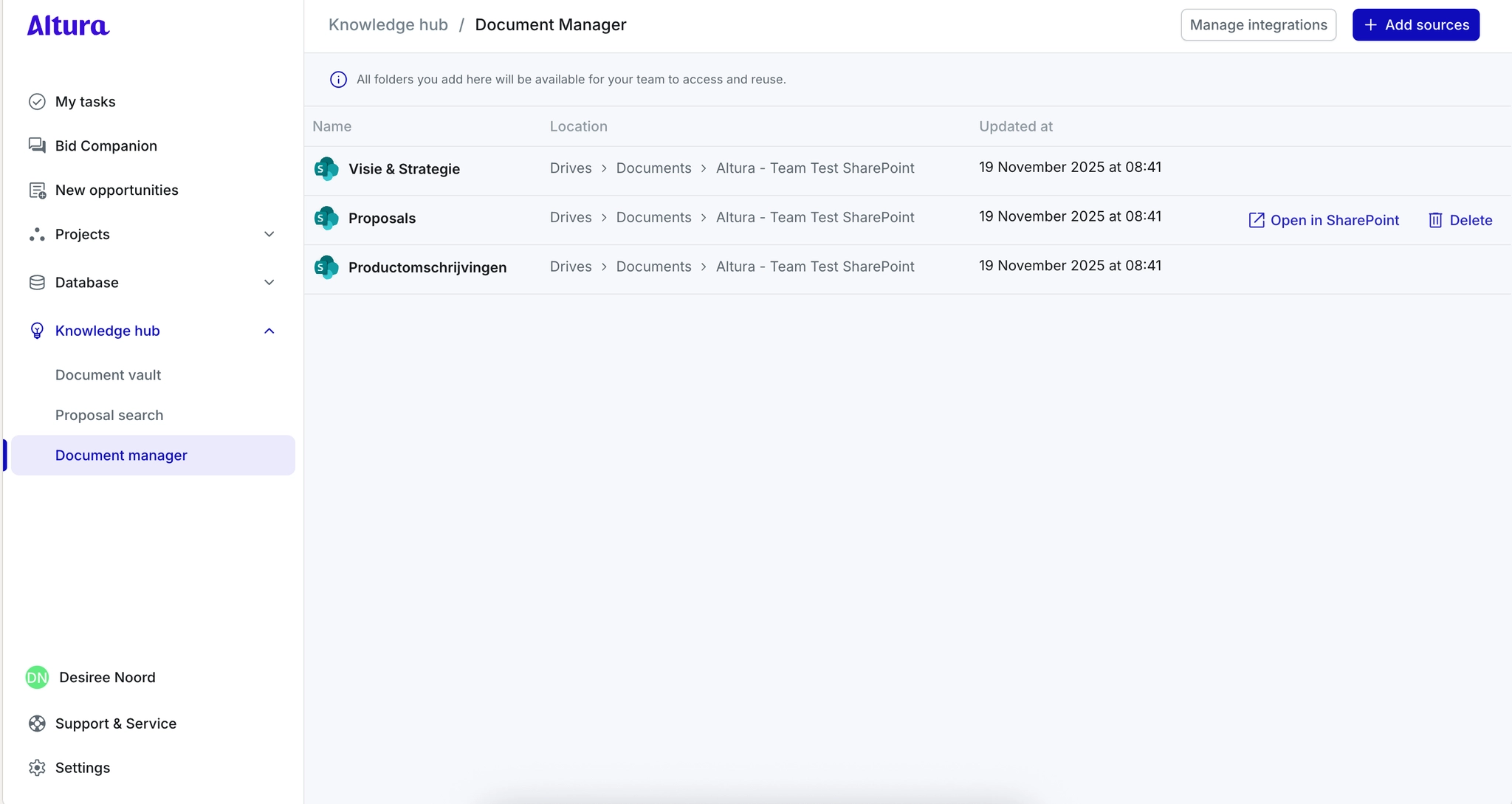
- Document Manager
- Admins: Add/remove synced folders, view sync status.
- Non-admins: View list of synced folders, open directly in SharePoint.
Image of the Document Manager with synced folders:
- Search Integration
- SharePoint appears as an additional source in Bid Companion Search (alongside Proposals and Project Knowledge).
- By default, all enabled sources are searched.
- Result Handling
- Results display document title + snippet.
- Opening a result redirects to SharePoint (no in-app viewer).
⚙️ Technical Specifications
- API Scopes
Altura connects to SharePoint using Microsoft Graph API with the following delegated permission scope:
Sites.Read.All
This scope enables Altura to authenticate, access files for indexing, and maintain continuous synchronization.
- Data Handling
When a SharePoint source is created in the Document Manager, Altura copies only the folder hierarchy, not the full file contents.
During indexing, the Machine Learning (ML) API retrieves the necessary files for processing.
Altura itself does not cache any documents; however, our integration partner (https://getmembrane.com/) temporarily stores files in encrypted AWS S3 buckets during processing. These files are held transiently and automatically deleted after indexing.
For faster AI responses, Altura stores lightweight text artifacts derived from documents, allowing quick lookups without keeping full files.
- Encryption
All tokens used for authentication with Membrane are signed using the HMAC-SHA512 algorithm.
Data in transit is encrypted using TLS 1.2 or higher, with a minimum cipher suite of TLS_ECDHE_ECDSA_WITH_AES_128_GCM_SHA256.
Data at rest is currently within MongoDB collections that are physically ****separated by team (shared per tenant). Data at rest benefits from encryption provided at the database level, as the MongoDB instance is encrypted.
- Scalability
There are no predefined limits on the number of folders per integration or the size of individual files indexed. Indexing performance depends on the size and number of synced files but scales automatically with demand.
- Audit and Logs
Administrators can view the status of successful and failed syncs directly in the Document Manager. Permission-related issues are logged internally for Altura developers and not exposed in the admin interface.
- Error Handling
When a sync fails, an error notification appears in the admin interface.
Other types of issues (e.g., unsupported file types or temporary API errors) are handled automatically and logged for Altura’s internal monitoring.
🚫 Current Limitations (MVP Scope)
- No manual “force sync” (auto only, 5-min interval).
- No metadata filtering (e.g., tags, authors, dates).
- No direct editing/uploading of files via Altura.
- No OneNote notebook support (export to Word/PDF as workaround).
📌 FAQ (Technical)
Q: Can we connect one SharePoint site to multiple Altura teams?
A: Yes, one SharePoint instance can be linked across different Altura teams.
Q: How is access enforced?
A: Altura does not enforce or replicate SharePoint permissions. After a folder is synced, its files can appear in Altura Search and may show the title and a short content snippet to Altura users with access to that source—even if they can’t open the file in SharePoint.
- Today: Clicking a result opens the file in SharePoint, where SharePoint’s native permissions determine whether the user can view the full document.
Recommendation: Only sync folders that are safe for organization-wide visibility.
Q: What happens if a folder is removed?
A: Altura removes indexed references at the next sync cycle.